Support Page Content
EAB Access - CARS Request Process
CARS requests are only available to managers who have attended the CARS training hosted by IRT and have direct reports. If you are unable to locate the CARS Request form in OnBase, please refer to your department business analyst.
If you are requesting Advisor Role EAB access for an end user, please follow the instructions below.
How to request EAB access
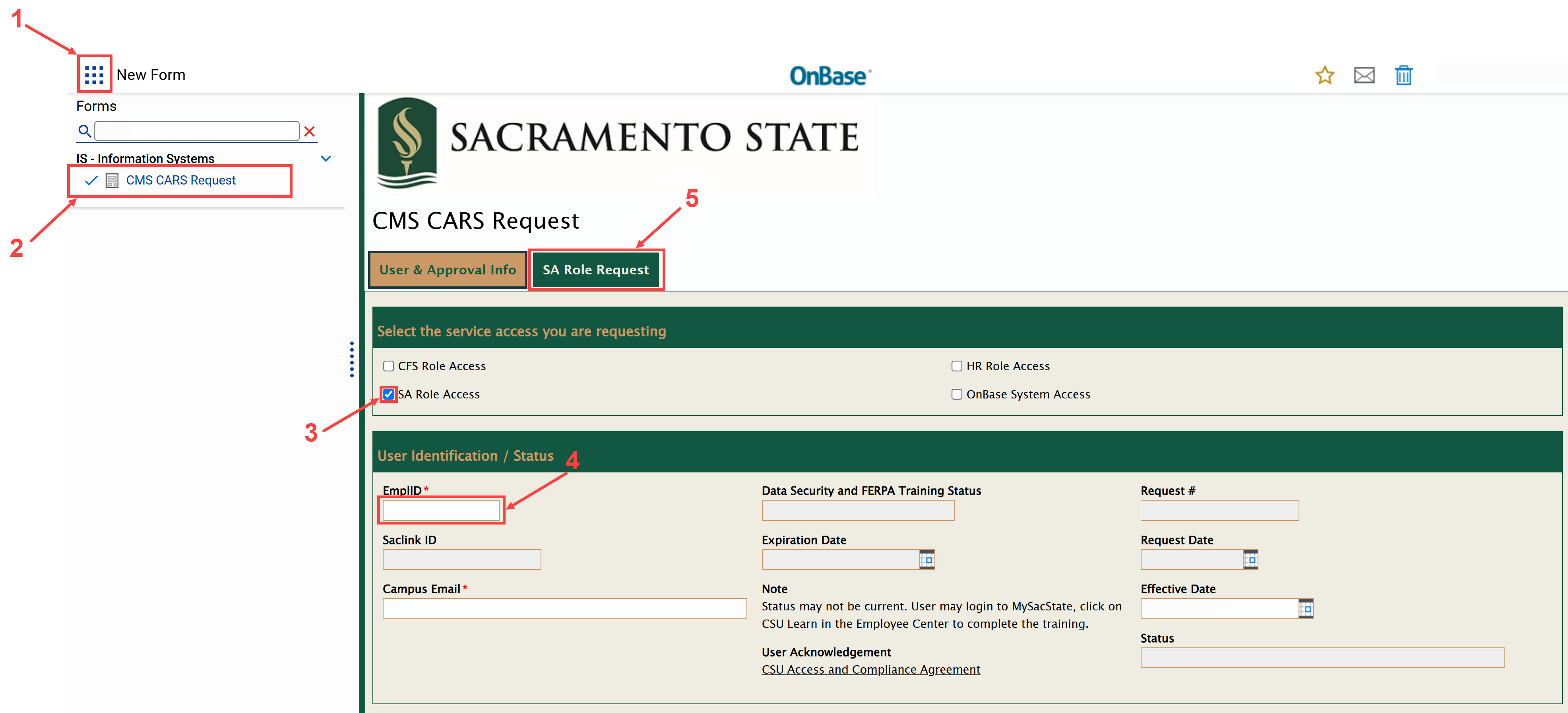
1. After logging into OnBase, click on the Main Menu button at the top left and select New Form
2. Under Forms, IS - Information Systems, select CMS CARS Request
3. The Service Access you are requesting is "SA Role Access". Click on the "SA Role Access" checkbox
4. Input the EmplID of the staff needing access
- All other info will automatically populate once the EmplID is added to the form
- Here you will have the opportunity to verify that the Data Security and FERPA Training Status is “COMPLETED”
5. Click on the SA Role Request tab
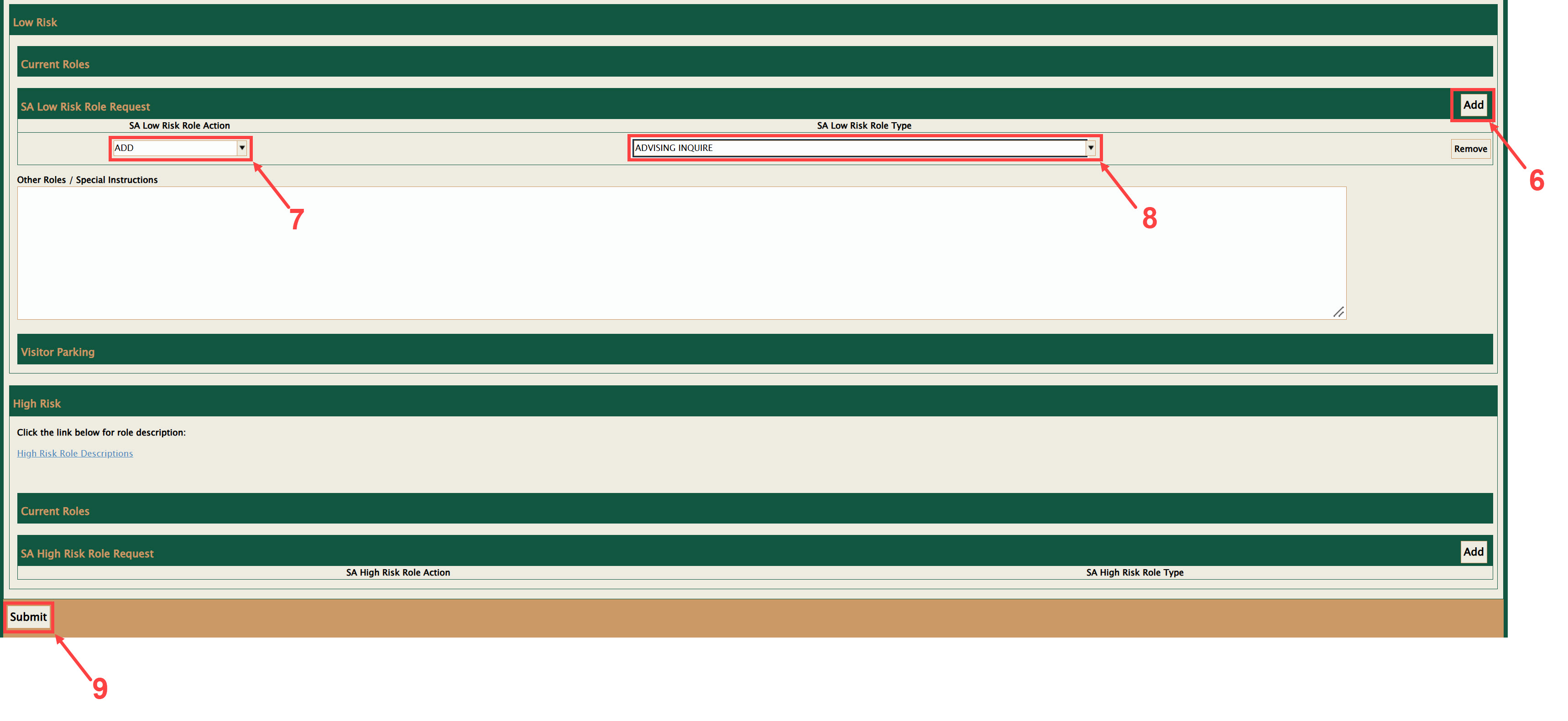
6. Locate SA Low Risk Role Request and select Add
7. Select Add again from the drop down menu for SA Low Risk Role Action.
8. Select Advising Inquire from the second drop down menu for SA Low Risk Role Type
9. Scroll down to the end of the form and select Submit to initiate the approval process
Please note that the employee will receive email updates through each stage of the process as the Hiring Manager, Data Owner, and IRT approve and complete the request.
Once the staff member has been successfully added to the SAC_SA_ADVISOR group via the CARS
Request, EAB will update overnight granting the staff member Advisor Role access in the
platform.
Questions?
If you have not received EAB training or are unsure which level of access to request for a staff member please contact the EAB Support Team via: eab.support@csus.edu