Support Page Content
Student Resources & Tutorials
Videos, Guides, and Tutorials
Resources and tutorials for various student services.
How to Add your SSN
**If you are a FAFSA applicant, add your Social Security number to your student account to ensure your financial aid application is linked to your record.**
- Log onto your My Sac State at https://my.csus.edu/
- Locate the Student Center link
- From the Student Center page, locate the Personal Information section
- Select the Demographic Information link
- Once the Demographic Information is displayed, locate the submenu with the three line on the right side to expand and select the Add SSN link
Important: Double-check the numbers before submitting your entry. If an incorrect number is reported, you will not be able to edit it on your Student Center and will need to use the Student Personal Information Change form through OnBase forms.
How to Add SSN (PDF) - Downloadable Instructions
How to Order Official Transcripts
Before you begin, please review the transcript ordering process:
The processing timeline begins once you receive an email indicating ‘Order Complete.’ The Order Complete notification does NOT mean your order has been sent or is ready for pick-up. The confirmation confirms indicates that your order is submitted to the Registrar’s Office for processing. The University Registrar takes responsibility for handling transcript requests in a prompt and efficient manner
Processing time is 5 - 7 business days. For mail orders, please keep in mind this does NOT include mailing time. The University Registrar is not responsible for mishandling by the U.S. Post Office or the receiving school or agency.
Pick Up Orders you will be notified by email from the Office of the University Registrar when a pick up order is ready in the Student Services Center in Lassen Hall, Room 1000.
Getting Your Transcript to its Destination as Quickly as Possible: Select Order ELECTRONIC for the fastest method of delivering your transcript.
Setting Up Your Parchment Account
- To begin, visit the Parchment website for Sac State.
- In the Email field, enter your preferred email address and click Continue. It does not have to be a "CSUS email."
- Complete the Enter your Personal Information and Choose a Password sections. You may encounter an error message if too much time passes while entering information. To resolve, close your browser and start a new session.
- Select the Create Account & Continue.
- You will be asked to confirm your account through an email confirmation. Check your email for your specific registration code.
- Once you enter the code, click Submit.
- After your account is verified, complete the Enrollment Information page. Note: You are not required to complete the "Your Student ID Number" field but is encouraged if applicable.
- Click Continue to complete your account.
Ordering Your Transcript
You must have created a Parchment account before you can begin the ordering process. Transcripts are $11.00 per copy.
- From your Parchment account, locate Transcript and select the green ORDER button to the right on the Available Credentials page.
- Then, confirm where to send the transcript on the Set Delivery Destination page. You may search by the school or select the option "I'm sending to myself or another individual." Then, you will be given three delivery methods (1) Electronic, (2) Print & Mailed, or (3) Local Pick-up (In-person Pickup)
- Electronic - input the Recipient's name and email address.
- Print & Mailed - input the Recipient's name, phone number, and address.
- Local Pickup - select the option to pick up the order yourself or designate another person to pick up the order on your behalf. Input a phone number to get informed when your order will be ready. The Student Service Center will be the default location for all in-person pickups.
- Once your delivery method is selected, you will be brought to the Item Details screen that will provide your order details and pricing.
- Select the Purpose and When Do You Want This Sent. Choose Send Now or Hold for Degree.
- You may choose to include any attachments using the Add an Attachment button as applicable.
- Consent to the order by electronically signing with your signature.
- Then, you will move forward to the Order Summary page to finalize your order.
- If satisfied, select Continue to move forward to the payment page.
- From the Payment Information page, input your credit card information and billing address.
- Click the Submit Payment button to place your order. DONE!
Tracking Your Order
- From your Parchment account, locate Orders > Order History from the menu at the top of the screen.
- Your Order History will show your transcript order which will include the Document ID, Status, Recipient, and Price.
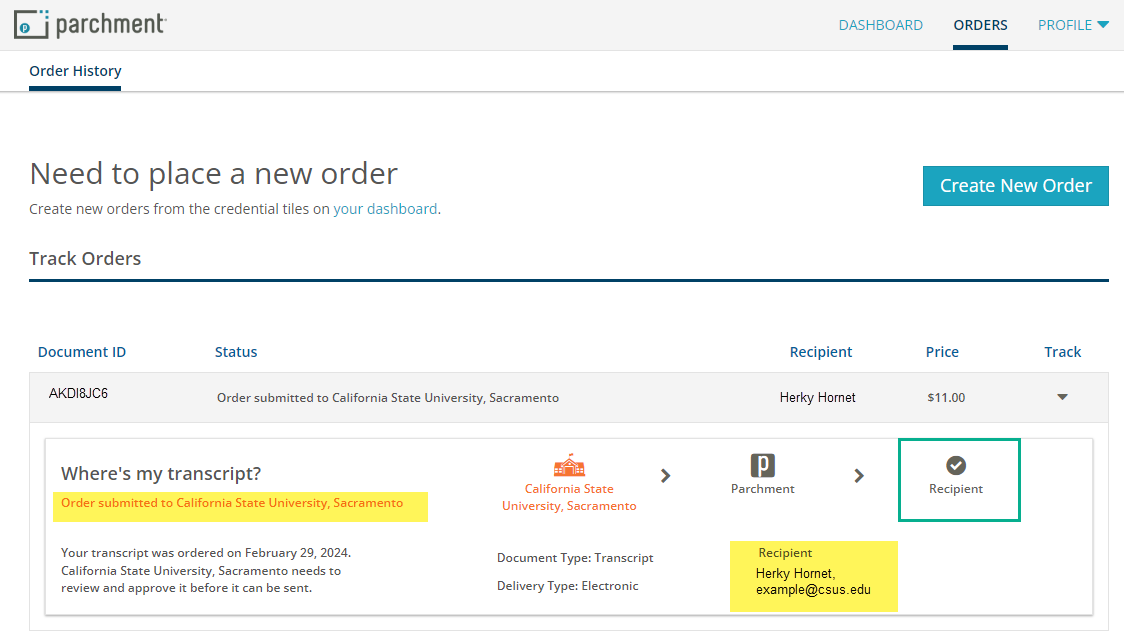
When your order is processed, the status will change under the "Where's my transcript?"
NOTE: If you opted for an electronic delivery, the receiver must access the download via email. Your Parchment account will not give you the option to download the transcript as it's intended for the listed recipient.
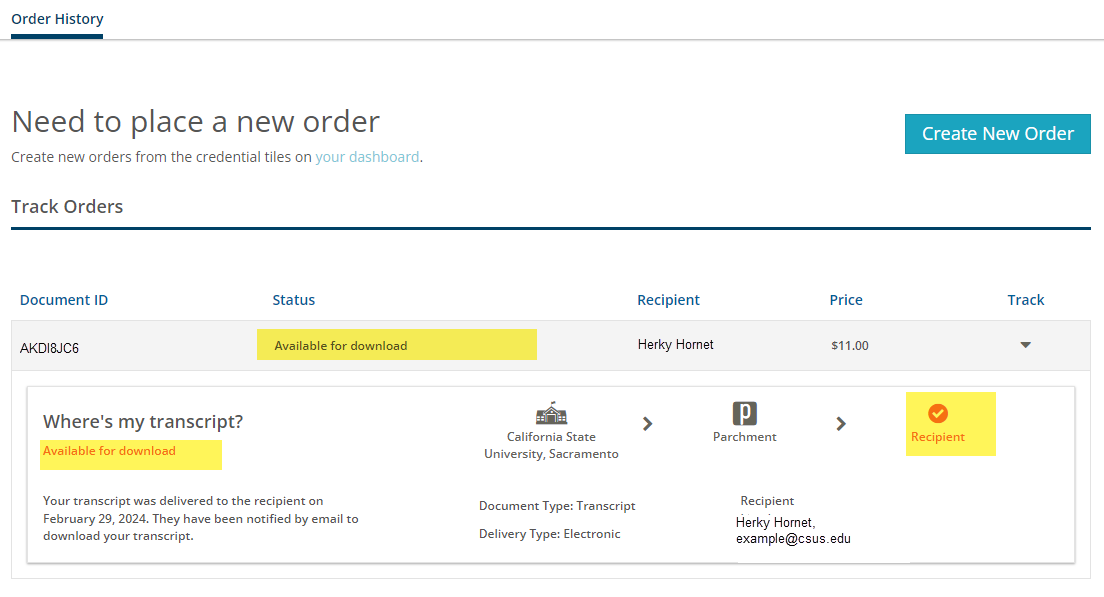
Downloading Electronic Transcripts
Parchment will send an email confirmation with a link to access the transcript to the intended recipient. Look for the Subject Line: "You've Received A Document: [Assigned Document ID]"
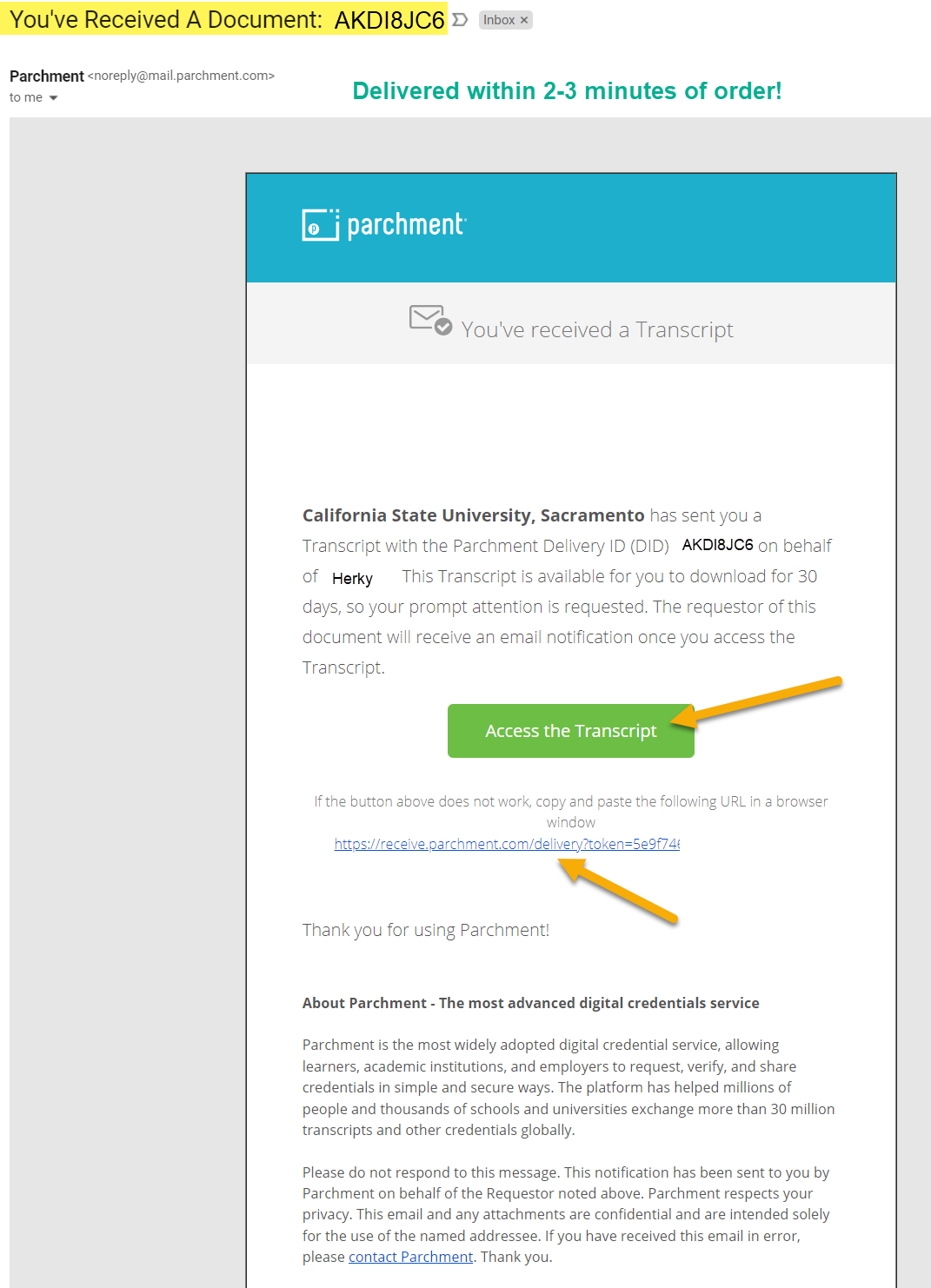
The link will be available for 30 days for unlimited downloads in your internet browser.

Understanding the Financial Aid Application
- CADAA: California Dream Act Application, Accessing the Application
- Applying for Financial Aid (FAFSA)
- FAFSA: Understand and Prepare Contributors
- FAFSA: Who is a Contributor
- FAFSA: Create and Access your Student Aid Account
- FAFSA: Information Needed to Complete your Application
- FAFSA: What Happens After I Submit My App?
View your Documents on Student Aid
A guide for students and parents to access their Student Aid account and their financial aid records such as the Annual Student Loan Acknowledgement, Entrance Counseling, Master Promissory Note, and more.
How to Complete Student Loan Requirements
A guide for students to complete their federal student loan requirements such as Entrance Counseling, Master Promissory Note, and Exit Counseling.
How to Apply for the Parent PLUS Loan
A guide for parents to complete their federal PLUS loan requirements such as Applying for the PLUS Loan, Master Promissory Note, and more.